Charging the PS4 Controller: How to Charge It Properly, Check Charging Status, and Fix Common Issues (2026 Guide)
- Charging the PS4 Controller: Essential Methods and What You Need to Know
- How Do You Know if the PS4 Controller Is Charging
- Does the PS4 Have to Be On to Charge the Controller
- Choosing the Best Power Source for Charging the PS4 Controller
- Can You Charge a PS4 Controller from the Bottom?
- Common PS4 Controller Charging Problems and Smart Solutions
- Conclusion
- FAQs
Charging the PS4 controller should not be hard, but this is something many gamers still continue to question. The right methods can help you maximize battery life and prevent common problems, such as understanding about, can you charge a ps4 controller in the wall and how charging lights work or the rest mode feature.
If you're looking for reliable backup power for your gaming setup, in this guide, we will help answer your question about how you charge the ps4 controller and provide you with the best charging methods, understanding of the status indicators of your PS4 controller and assisting you with troubleshooting issues with your PS4 controller, so your gaming does not become disrupted.
Charging the PS4 Controller: Essential Methods and What You Need to Know
Charging your ps4 controller correctly is essential for prolonged gaming experiences. Learning how to charge the ps4 controller properly will maximize its battery life and prevent it from randomly shutting off during games. If you want to know how to charge your PS4 controller, follow the instructions below!.
How Do You Charge the PS4 Controller
There are many ways you can charge your PS4 controller! The most commonly used way is by using a Micro-USB cable to connect it directly to the PS4 console. Alternatively, you can use a charging dock, a wall adaptor, or even a portable power station for maximum convenience.
Charging Method | Convenience | Works When Console Is Off? | Recommended For |
PS4 USB Port | ★★★★★ | Yes (with Rest Mode enabled) | Everyday gaming |
Charging Dock | ★★★★★ | Yes | Multiple controllers |
Wall Charger | ★★★★☆ | Yes | Fast and convenient charging |
Laptop or PC USB Port | ★★★★☆ | Yes | Gamers on the go |
Portable Power Station | ★★★★★ | Yes | Travel and backup power |
The Portable Power Station is ideal for gamers needing back-up power during outages or an outdoor gaming session, especially for those who rely on wall outlets for their devices.
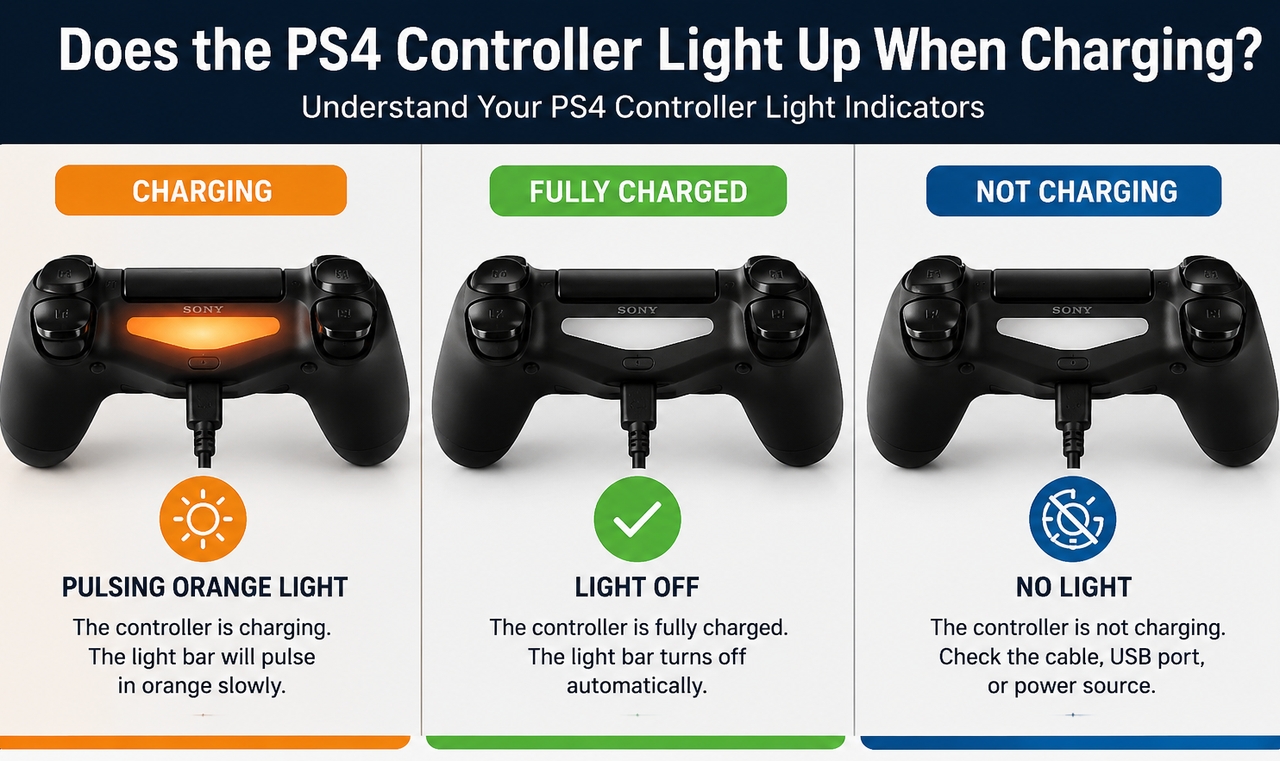
Does the PS4 Controller Light Up When Charging
Certainly. The simplest method to determine if a PlayStation 4 controller is being charged is to look at its light bar. The controller's light bar will gradually pulse an amber (orange) colour when connected to a charge.
This means the controller is currently charging. When the battery is fully charged, the light will turn off automatically. This lets you know the controller is fully charged and ready for use.
How Do You Know if the PS4 Controller Is Charging
The PS4 controller has an indicator light that turns orange when the controller is charging, and you can see the battery icon on the PS4 home screen.
You can tell your PS4 controller is charging by the following signs:
The light bar on the controller will flash slowly and will be an amber color.
You will see a battery icon on the screen of the PS4.
The battery level will increase as time goes on.
The flashing light will stop when the battery has been fully charged.
If you do not see any of these indicators, the problem may relate to the USB charging cable being used, the USB port on the PS4 or the settings for charging.
Does the PS4 Have to Be On to Charge the Controller
PS4 Controllers can be charged by their respective consoles as well as with USB Power Delivery (USB PD) devices—these include wall chargers as well as devices such as computers or laptops.
Also, there is no requirement for PS4 to be completely powered on. As long as USB PD is enabled on a users PS4 System Settings, PS4 controllers can be charged while PS4 console is in "Rest Mode".
PS4 controllers can also be charged by:
Wall Adapter
Laptop or Desktop PC
Charging Station (via a PS4 controller charging cradle)
Moving forward, now that you understand the basics of how to charge a PS4 controller and how to identify charging indicators, you know how to safely and effectively charge a PS4 controller.
In the next section, you will learn about charging from the bottom of your PS4 controller, using a wall charger, using a phone charger, and if your PS4 controller will charge when your PS4 is OFF or in Rest Mode.
Choosing the Best Power Source for Charging the PS4 Controller
Once you know how to charge your PS4 controller, you then need to find an appropriate way to do this, i.e., a Power Source. Many gamers have asked if they could charge their Controller using a Wall Adapter such as a phone charger or if you could charge your controller if your console is turned off.
The good news is that there are several great charging options for the PS4. Therefore, it is easy to charge your controller from home or out on-the-go.
Can You Charge a PS4 Controller in the Wall
You can charge your PS4 controller from the wall using a USB compatible Wall Adapter. This is a much easier way to charge your controller than being connected to the console and especially if you need to free up USB ports or charge your controller away from your gaming setup.
For optimal usage, use a quality Wall Adapter that has a standard 5V output.
Can You Charge the PS4 Controller with a Phone Charger
Another common question: you can charge the PS4 controller with a phone charger. The answer is positive, as most USB phone chargers provide adequate voltage to allow the PS4 controller to charge successfully and safely.
Using a reputable charger and/or cable will help preserve battery health as well as provide consistent charge to your PS4 controller.
Can You Charge a PS4 Controller from the Bottom?
You may charge your PS4 controller from its base; however, this is only possible if you use approved accessories that plug into the EXT port of your controller. This port is located on the bottom of PS4, and many charging decks/docks cover the ability to recharge 1 or 2 controllers without needing a Micro USB to charge.
There are several advantages to bottom charging versus using the traditional charging method of using the Micro USB port on top of the controller.
One of the primary benefits is how much neater and cleaner it is to have a dock and charge your controllers; many gamers like using charging docks because it reduces donating cables as well as offers a convenient way of storing their controllers when not in use.
If you want convenience in charging your PS4 controllers, having a bottom charging dock could be a worthwhile item to add to your gaming setup, especially for families that use multiple PS4 controllers.
Does a PS4 Controller Charge When the Console Is Off
Gamers often find it confusing when they think their PS4 controller will charge while their PlayStation 4 console is shut down, because when the console is in a complete power off state, the console stops supplying power to its USB ports and thus will not supply any power to your Ps4 controller to recharge it.
However, this is not the case for all PS4 models and systems.
Some PS4 models support limited USB power in standby mode, which is dependent on your system settings; therefore, if you disable USB power during shut down, then your PS4 controller will stop charging when your console turns off.
As a result, people who rely on the overnight charging of their PS4 controllers need to be aware that they cannot depend on a full power off state to provide reliable charging of their controllers while they are not being used.
This leads us to discuss a more efficient way of charging your controllers through the built-in charging system.
Does the PS4 Controller Charge in Rest Mode
This is the method recommended for a reason! When a PS4 is in Rest Mode (this means you have been playing games and unplugged them from the console), your controller can be plugged into a USB port and charged up efficiently. The purpose of Rest Mode is to complete background activities such as downloading updates, charging controllers, and keeping your PS4 ready for quick startup.
To enable the features, you will go to the following:
Go to Settings > Power Save Settings > Set Features Available in Rest Mode Turn on “Supply Power to USB Ports”With this setting, even if the console appears off, a controller will continue charging while the console is in Rest Mode. This makes using Rest Mode to charge your controller a great option since this is one of the easiest built-in charging options.
Now that you know how the console provides charging to the controller, many gamers are looking into alternative ways to charge the controller that provide greater flexibility and independence from their consoles.
Why Portable Power Solutions Are Perfect for Gamers
The PS4 console's ability to charge via the Rest Mode feature can only do so if the console itself is powered and configured correctly. Luckily, portable power solutions provide an amazing solution!
Portable chargers, battery packs with USB connections, and other power banks allow you to charge your controllers whenever and wherever you want—you don't need your PS4 to be on or plugged into anything to use them! Here are some use cases where this is beneficial to a gamer:
A gaming setup without easy access to the USB ports on your PS4.
A gaming setup where travel or the outdoors is common.
A gaming setup where power outages or sporadic electricity outages are common.
Decreasing wear and tear on your PS4's USB ports over time.
Not only do they provide convenience, but many of today's gaming power banks also offer fast, consistent charging, so you won't ever be without your controller!
Essentially, while Rest Mode offers gamers some convenience, any serious gamer knows that portable power solutions provide freedom and mobility and flexibility that are becoming increasingly popular in today's mobile and multi-device gaming environment.
Recommended Product: EcoFlow DELTA 3 Max Series (2048Wh) Portable Power Station
Common PS4 Controller Charging Problems and Smart Solutions
PS4 controllers have a very simple plug-and-play charging method and are supposed to work perfectly; however, you may find out that in the real world it is not that easy. Over time, many different factors, such as
The cable being too flimsy
Dust collecting in connectors
The inside of the controller wearing out
They cause your PS4 controller to charge incorrectly, resulting in your PS4 controller being completely unresponsive when you want to use it. Fortunately, all of these issues can be resolved once you figure out what the problem is.
Identifying the problem is your starting point; however, you should then be able to move directly into the most common problem that all gamers encounter with their PS4's inability to charge properly.
Why Is My PS4 Controller Not Charging
There are a few reasons why a PS4 controller will not charge, which is often not due to one thing but rather numerous small things that contribute to it.
The most common reasons are that the USB cable is worn out, that there’s a loose connection with the port, or that the battery is dead and will need an extended initial charge in order to recover.
The controller may seem to be dead for a variety of reasons, such as there has been no use over time or because of an inconsistent charging source, i.e., either from the console USB port or the adapter, and knowing these conditions will help you with identifying if the failure is external or if it is internal with the device and this will assist you in knowing whether or not it needs replacement.
If nothing has been identified as a problem, the next step would be to determine whether the hardware itself has started to malfunction.
Can You Replace the Charging Port on a PS4 Controller
The charging port on some PS4 controllers can actually be fixed by replacing the connector. However, it's not as simple as just going out and buying a new one and doing a DIY (do-it-yourself) job. The issue is that the connector is soldered to the mainboard, so this type of repair involves significant precision tools and skills to perform.
Repair businesses who handle these types of repairs generally do a very good job; however, many people choose to simply buy (this is especially true of controller users who have had their controllers damaged and do not want to pay too much money to fix them).
Before attempting to fix any hardware problems with your controller, you must first determine that your controller has hardware problems by making sure that it is consistently not charging via multiple different chargers, cables and/or power sources.
The next step to diagnose if you have a hardware problem with your controller is to inspect it for any signs of physical damage.
Signs of a Damaged Charging Cable or Port
Warning signs of a broken cable or damaged port include an intermittent charging sign when connected to the controller.
It may only turn effective when it is held at specific angles, suggesting that it is not tight or secure.
While being charged, the controller may unplug from the battery many times, even though it appears to be connected.
If the USB cable is loose in the charging port, it's definitely damaged or worn.
If the connector pins inside the port are bent, then the charging flow may not be correct.
If the USB cable is visibly worn, frayed, or damaged, it is likely that the problem lies with the USB cable and should not be considered a software issue.
If these signs are detected early, they will cause less need for useless troubleshooting steps to be taken and can help unravel the actual problem. However, once it is identified, you can take easy steps towards getting a replacement faulty cable or finding a stable charging option.
Next, the emphasis is on making practical changes to get stable charging back on track.
Troubleshooting Tips to Restore Proper Charging
Smart troubleshooting steps may help revive a dead controller before replacing any hardware.
Different USB cable, different power source, and use the small reset button on the back of the controller to reset it.
Use compressed air to gently clean your charging port; dust can build up inside and cause a problem, making it impossible for the port to provide proper contact.
Often these simple fixes will be sufficient to restore the controller's ability to charge properly without incurring any further expense.
If you have been able to revive your controller and now it is functioning normally, you should consider other enhancements beyond just fixing problems when upgrading your complete gaming equipment.
Creating a Comfortable Gaming Environment During Long Sessions
A good gaming experience depends on having a reliable source of power. This means your gaming experience can be enhanced by not only providing a reliable source of power to your gaming station, but also by creating a comfortable, stable environment to play in and eliminating any interruptions from playing your PS4 for extended periods of time.
Having spare connection cords, charging docks and having the right amount of illumination and seating is essential to provide you with a smoother gameplay experience.
When your controller is powered up and the environment is set up properly, you are less likely to have interruptions during gameplay allowing you to concentrate on performance, making each gaming session an enjoyable and relaxing way to relieve stress.
Recommended Product: EcoFlow WAVE 3 Portable Air Conditioner
Conclusion
If you want to ensure that you have no issues with your controller's batteries, it is important to know how to charge the PS4 controller properly and keep your gameplay uninterrupted. You will need to charge your controller at the console, using a charging dock or through a compatible wall adapter, but you must use the correct power source and cable to efficiently keep your controller functioning properly.
Players also want to know if their controllers will charge while the console is off or in Rest Mode. For most players, using the USB Power option during Rest Mode will allow your controller to charge, even when the console is not in use. You can tell that the controller is charged by the light bar on the controller.
If your controller stops charging, you could try several simple things first, such as trying another cable or cleaning the charging port or resetting your controller. If you find that the port is damaged, you can have the charging port replaced; however, having a professional do the repair may be more efficient.
Should charging problems arise, knowing you can replace the charging port on a PS4 controller and paying attention to signs of problems early, you will be able to keep your PS4 charged and ready for you to use the next time you play video games.
FAQs
How do you charge the PS4 controller?
To charge your Playstation 4 controller, you can use a micro USB cable to connect to the Playstation 4 console, use a compatible charging dock, or use a USB wall adapter. You can usually get a full charge in about two hours.
Can you charge the PS4 controller with a phone charger?
Yes, you can use a phone charger to charge your Playstation 4 controller as long as the charger is capable of providing the correct amount of power for charging via a standard USB connection. Always use high-quality chargers and cables to charge your controller safely and reliably at the same time.
Does a PS4 controller charge when the console is off?
The PS4 controller has two charging modes: rest mode and completely off. The controller will only charge while in rest mode (with USB power on), if the PS4 is powered completely off, it will typically not charge.
Does the PS4 controller light up when charging?
Yes, when charging, the PS controller's light will flash slowly between an amber/yellow color. The light will turn off once the controller has been fully charged.
Can you replace the charging port on a PS4 controller?
Yes, the charging port on a PS4 controller can be replaced; however, this is due to the soldered nature of the connection to internal hardware. It is advisable that a person looking to perform this service possess basic technical abilities and/or enlist in a professional repair service, to facilitate soldering and other tasks so as not to damage or ruin the internal electronics/components of the controller.