Why Your iPhone Charges Faster to 80% and Then Slows Down
- Why iPhones Charge Quickly Until 80%
- How Hardware and Cables Affect Charging Speed
- Temperature, Environment, and Software Settings
- Maintaining Battery and Charging Ports for Consistent Speed
- Troubleshooting Slow Charging After 80%
- Frequently Asked Questions
- Want Faster, More Reliable Charging Anywhere?
If you have an iPhone with iOS 13 or later, you may have noticed a sharp decline in charging speed once it reaches 80%. This slower speed might simply be due to your device’s default battery settings. However, it could signal an issue with your phone’s software, hardware, charging cable, or environment.
Below, we explain when and why iPhones automatically reduce charging speeds and how to override the settings in situations where you need a fully charged device fast. We also discuss common issues that can hamper charge speeds, as well as how to troubleshoot and resolve them.
Why iPhones Charge Quickly Until 80%
All rechargeable batteries degrade as they chemically age, a process that’s accelerated when the battery remains fully charged for too long or becomes too warm. To reduce the rate of chemical aging and extend your battery’s lifespan, most iPhones feature Optimized Battery Charging, which is active by default.
Optimized Battery Charging reduces charge speeds if the battery gets too hot. It also minimizes the time your device spends fully charged by learning your habits. For example, if you charge your phone overnight, recharging may automatically pause at 80% during the night and resume charging to 100% before you typically wake up.
Of course, these handy optimization settings are not always to blame for slow-charging batteries. Your phone’s apparent poor performance may be due to hardware and cable issues.
How Hardware and Cables Affect Charging Speed
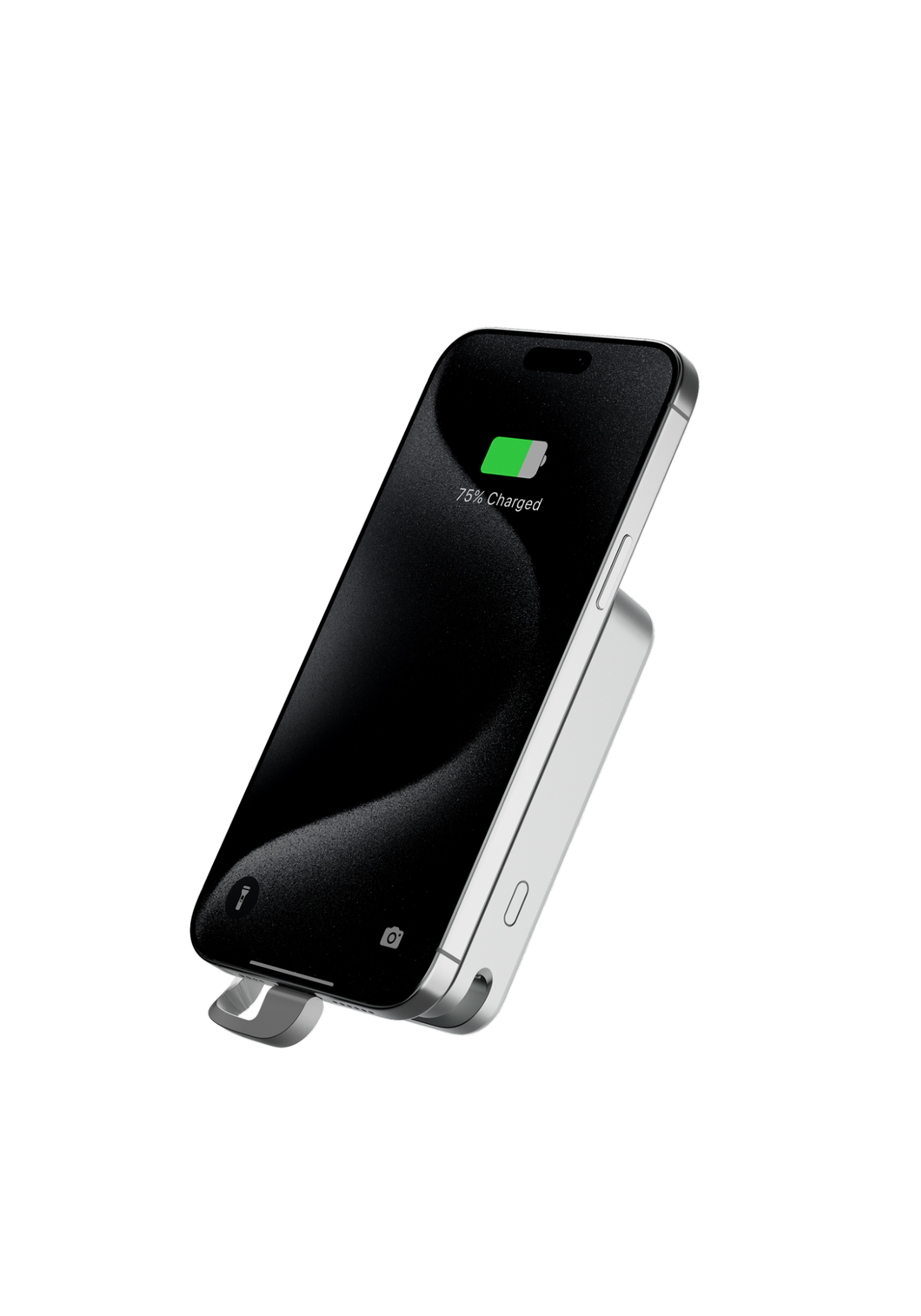
If you have an iPhone 15 or later, you may notice slow charge speeds if using a low-wattage adapter. Many iPhones released before the model 11 came with 5W chargers that struggled to keep up with the more demanding needs of later releases.
With most recent smartphones, charging may take longer than usual if you use a wired charger with a power output of less than 7.5W or a wireless alternative with less than 10W. Apple recommends using a USB-C power adapter with a minimum of 20W for optimal charging. iPhones with iOS 18 and later display a Slow Charger notification on the lock screen if a higher-wattage alternative could improve the performance.
If you use a charger with multiple ports, your iPhone may charge more slowly than usual due to the combined power needs of all connected devices. Likewise, you may notice slow speeds when connecting your device to a USB port in a car or on a computer.
Temperature, Environment, and Software Settings
iPhones are designed to function optimally in temperatures between 32º to 95º F (0º and 35º C). Still, temperature fluctuations can cause noticeable changes in charge speeds, and extreme conditions can temporarily impact your smartphone’s performance in multiple ways.
When charging your phone in environments outside the above temperature range, your phone may limit charging to 80% and disable certain features to prevent overheating. You can also expect a slight decrease in overall battery life in cold environments, but this should be temporary.
Running apps and software can also hamper battery performance. Using your phone while it charges, particularly for graphics or processor-intensive apps, can significantly reduce charging speeds. Even running apps in the background can have an impact. With that said, Apple generally recommends leaving your Wi-Fi switched on as it can improve your device’s performance and drains the battery more slowly than cellular data.
Maintaining Battery and Charging Ports for Consistent Speed
The best way to maximize your battery’s lifespan is to keep the Optimized Battery Charging setting active whenever possible, disabling it only temporarily when necessary. When this setting is active, your iPhone automatically minimizes the time it spends fully charged. When it reaches 100%, it stops charging, then resumes when the level drops to 95%.
On iPhone models 15 and later, you can manually set a charge limit of 80%, 85%, 90%, 95%, and 100%. By monitoring your charging and usage habits, your iPhone may recommend the most suitable charge limit via an automatic notification.
When possible, unplug your device once it reaches 100%, and avoid leaving it in places where temperatures can exceed 95°F (35°C), such as inside vehicles.
Besides the battery, you should also maintain the charging ports by regularly clearing them of dust, debris, and lint using a soft brush. Avoid using any metal or hard tools that could damage the components.
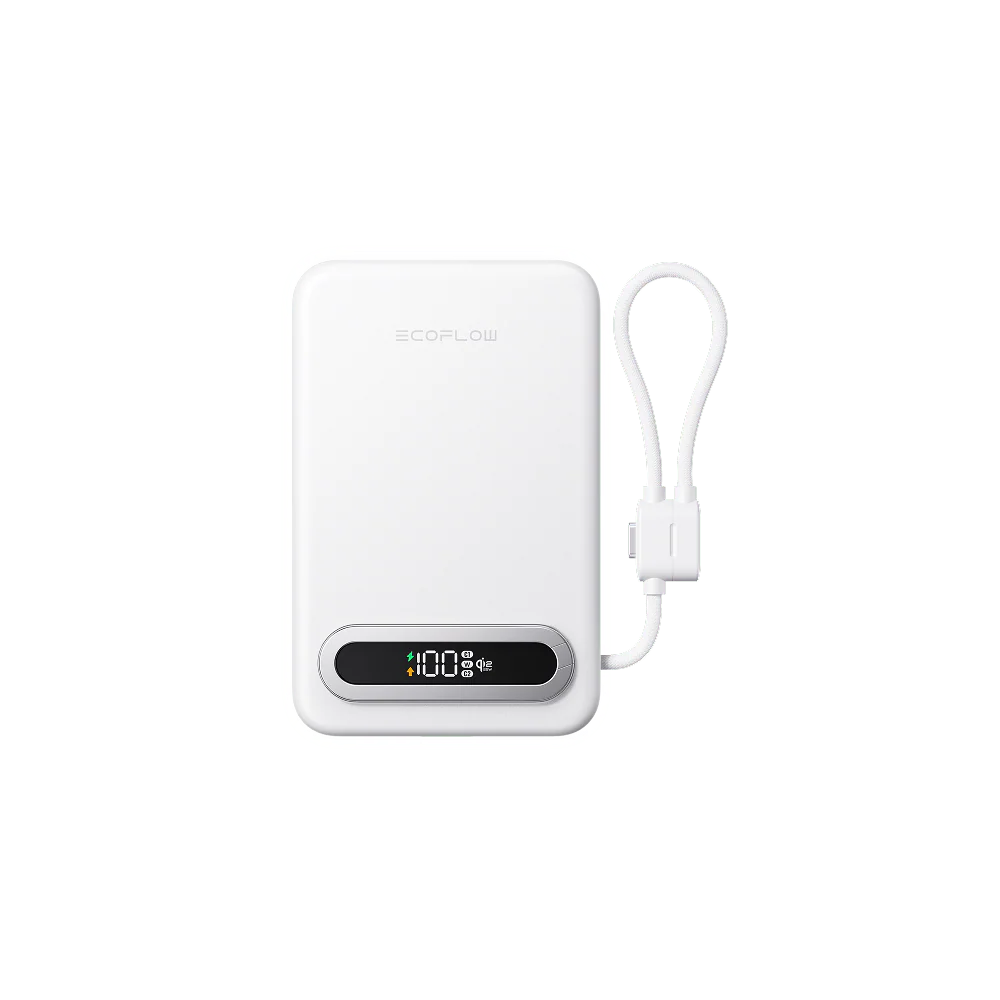
Ensure you’re using the most suitable wattage charger for your device’s make and model. And finally, ensure you’ve got a high-quality charger, such as an EcoFlow Power Bank, handy to protect your battery while charging on the move.
Troubleshooting Slow Charging After 80%
If you need to fully charge your smartphone as quickly as possible, you can override the Optimized Battery Charging settings. On the lock screen, simply tap and hold the notification that states the time remaining for your phone to charge, then tap Charge Now. This will leave your usual optimization settings in place for the next time you need to recharge.
If you have an iPhone 15 or later, check that your Charge Limit isn’t limited to 80% by tapping Settings > Battery > Charging. You can also find out whether your device automatically pauses charging by tapping Settings > Battery. If so, try moving the device to a cooler place.
Remember that one of the most common culprits behind slow charge speeds is a low-wattage charger; in this case, now might be the time to upgrade to something more powerful and dependable.
EcoFlow designs reliable portable power stations to match your power needs, whether you need to charge small devices or a full van setup. They also supply whole-home generators that keep you up and running in the event of a power outage.
Frequently Asked Questions
Is It Normal That an iPhone Gets Hot When Charging?
It is normal for an iPhone to get warmer when charging, and this is usually no cause for alarm. Your device should automatically pause or reduce charging to prevent overheating. You can try moving your iPhone to a cooler place to speed up charging.
How Can I Speed up My Phone Charging?
If your phone charges too slowly, you might be using a charger with insufficient wattage. Try using a 20-W USB-C power adapter with a Lightning to USB-C cable. Also, turn off background apps while charging, and avoid plugging your device in when temperatures exceed 95°F (35°C).
Does Fast Charging iPhone Damage the Battery?
When used with compatible iPhones, fast charging causes negligible additional wear compared to normal charging. Your device has in-built features to regulate the slight increase in heat generation, often slowing down when it nears full charge or pausing temporarily.
Want Faster, More Reliable Charging Anywhere?
If your iPhone only charges quickly to 80%, there’s likely no need to worry. Your device is probably just optimizing charging rates and limits to extend your battery’s lifespan. However, if you’re using a low-wattage charger, you might benefit from upgrading to a portable alternative that offers reliable charging on the go. EcoFlow Power Banks provide between 15W and 300W and take as little as 20 minutes to charge to 80% using a standard power outlet. For fast, reliable, and portable charging, check out EcoFlow today.
For press requests or interview opportunities, reach out to our media team
media.na@ecoflow.com