How to Live Stream on YouTube: Everything You Need to Get Started
Live streaming has become one of the most effective ways to connect with audiences in real time, whether you're sharing gameplay, hosting tutorials, or running live events on YouTube. However, going live successfully involves more than simply pressing the "Go Live" button. A stable internet connection, reliable equipment, and consistent power support—sometimes even backup options like solar batteries—can make the difference between a smooth broadcast and unexpected interruptions. Understanding the right setup and preparation steps will help ensure your stream runs confidently from start to finish.
What you need before YouTube live streams
Before going live-stream on YouTube, you need to take a moment to prepare properly. As you already know, the live video doesn't give you the luxury of edits. So, a small issue becomes very visible. A quiet space, a clear plan, and working gear can make a big difference. Here are a few details about you that you need to consider.
YouTube account verification
You can't go live without verifying your YouTube account. It's a simple step, but many people overlook it and get stuck later. You just confirm your phone number, and that's it. Once done, you won't have to worry again. It's a small action that removes a big roadblock.
Stable internet connection
A live stream on YouTube depends heavily on your internet. If your connection slows down, viewers notice immediately. It breaks the experience. You need to use reliable Wi-Fi and a wired connection. It's always worth testing your speed before you go live to avoid surprises.
Basic equipment
Always make clarity in your content and do not focus on expensive gear. A clear microphone matters more than a high-end camera. Furthermore, good lighting helps people see you properly. Make sure to start with what you have, but make sure your voice is crisp and your face is visible. That's what keeps people watching.
Ways to live stream on YouTube
There isn't just one way to go live on YouTube. The right option depends on your comfort level and what you want to share. You know some methods are quick and simple, while others give you more control. Below are a few options for YouTube live streams.
Streaming from mobile
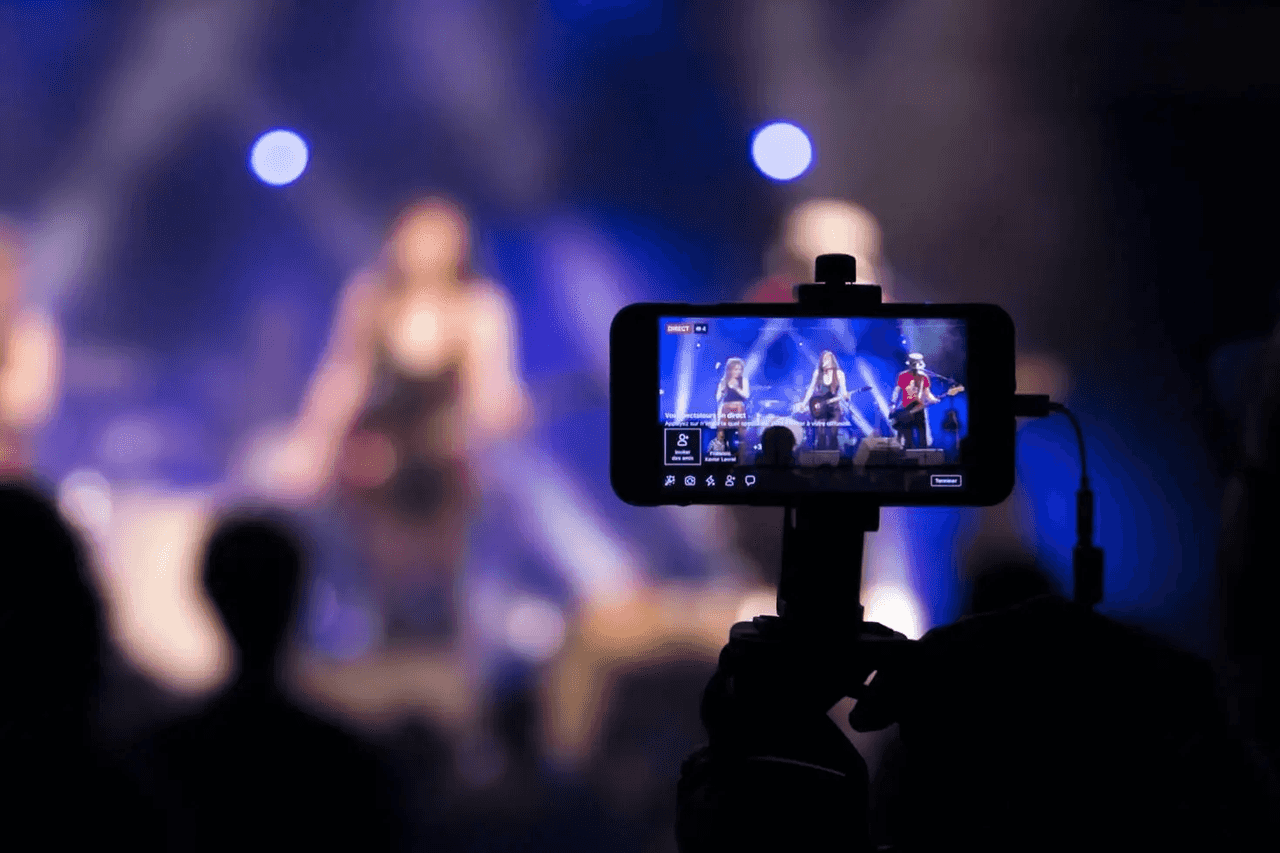
You can do a YouTube live stream with your mobile phone. Open the YouTube app, tap live, and you're in. It works well for casual updates, behind-the-scenes moments, and quick conversations. Just make sure your internet is stable, because mobile streams can easily drop if the signal is weak.
Streaming from desktop (webcam)
If you're sitting at your desk or in your room, a webcam stream is a solid choice for you. It feels more stable than mobile and gives you better control over framing and sound. You can plan your content, stay focused, and interact with viewers more easily. It's simple and looks more professional.
Streaming with software (advanced)
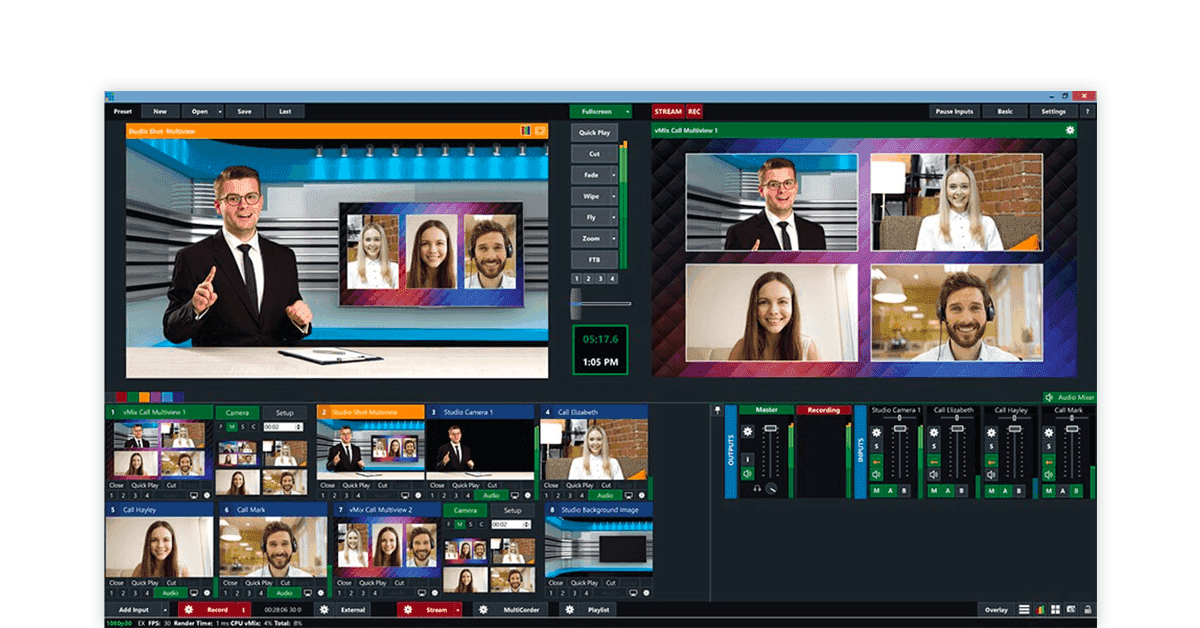
Do you want more control while live streaming? It is best to use tools like OBS Studio and Streamlabs. This setup is more affordable. You have the option to add graphics, switch scenes, and share your screen. It's ideal if you're teaching, gaming, or building a clearer life experience.
How to Live Stream On YouTube?
The process of doing a live stream on YouTube is super easy. Each step builds on the next, so don't rush. You have to make sure to set things up properly, and the process feels smooth. Follow the detailed step-by-step process below to avoid any issues during the process of streaming live to YouTube.
Step 1: Enable live streaming on your channel
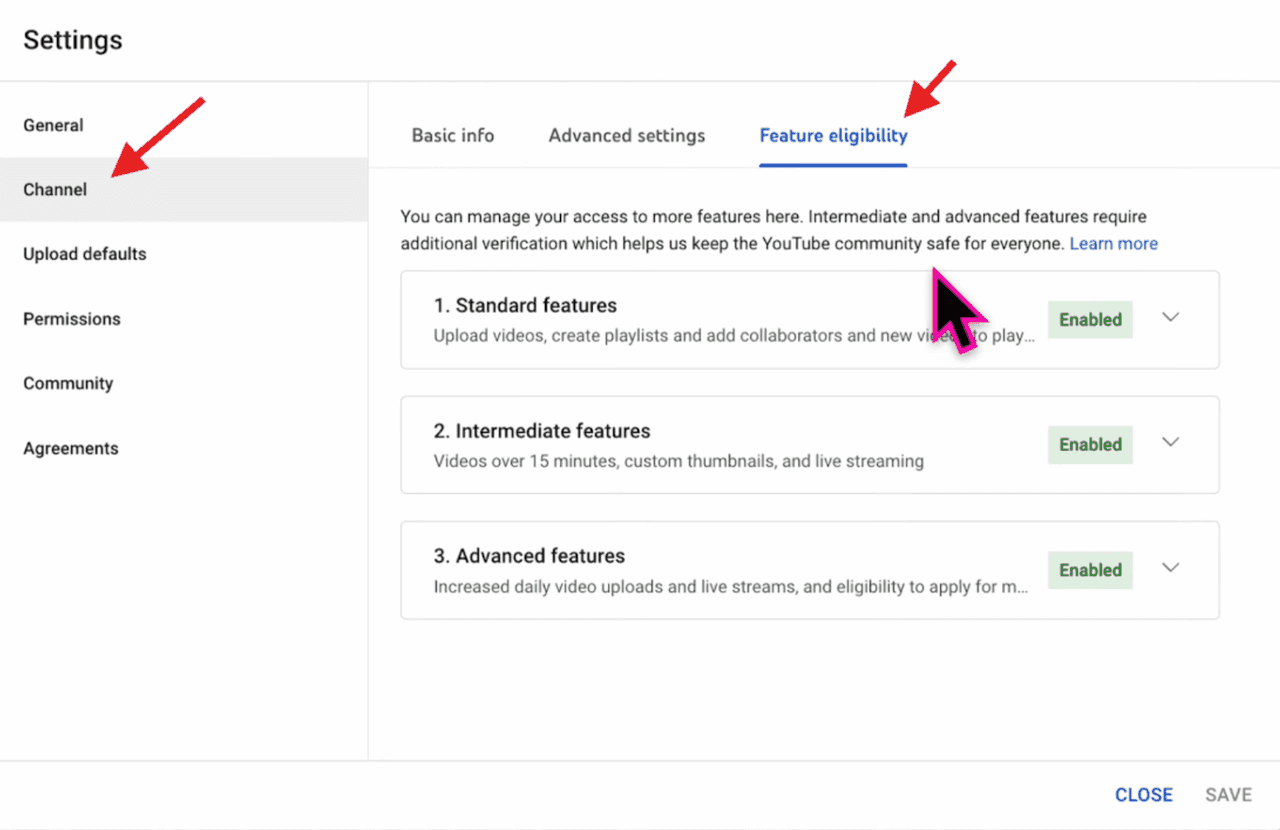
First, make sure live streaming is enabled on your channel. You have to go to YouTube Studio, verify your phone number under Settings > Channel > Feature Eligibility. The first time you enable live streaming, you must wait 24 hours for activation.
Step 2: Open YouTube Studio and select "Go Live."
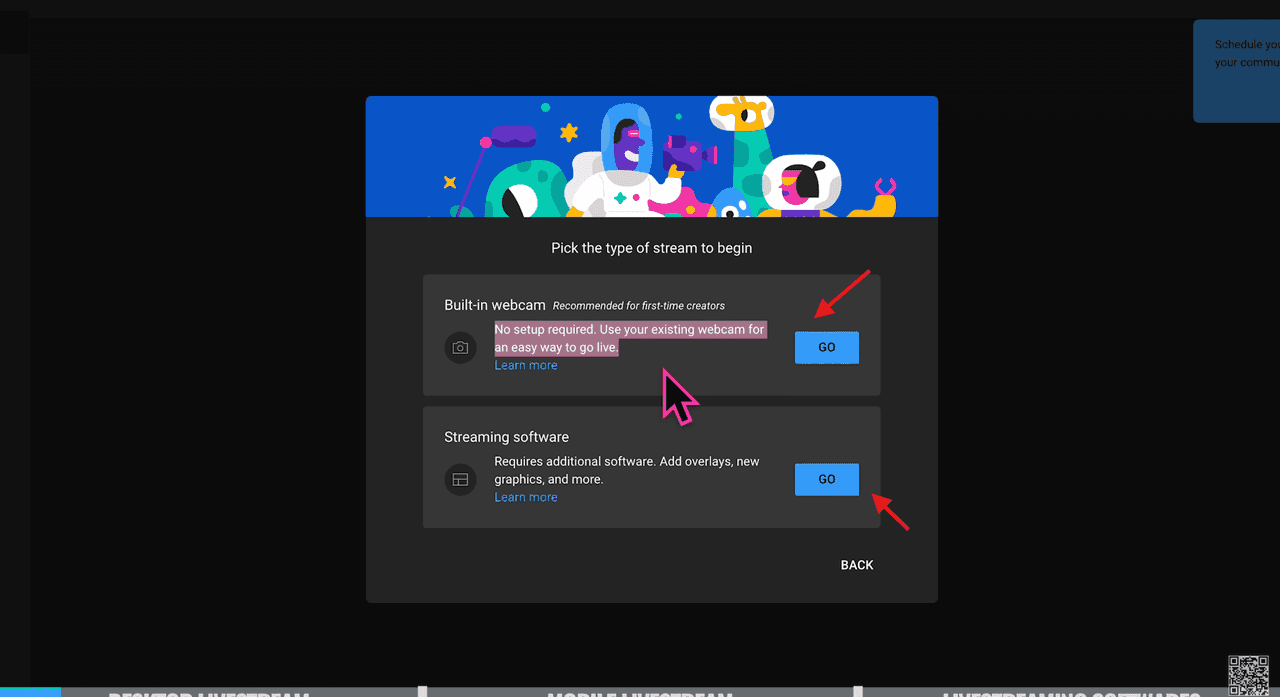
Once a live stream is activated in your account, you can start by clicking the Create icon (camera) in the top right corner and selecting "Go Live". Open the YouTube app and "tap Create" (+) >"Live". Here, choose "Webcam" (simple), "Mobile", or "Streaming Software".
Step 3: Set stream title, description, and privacy
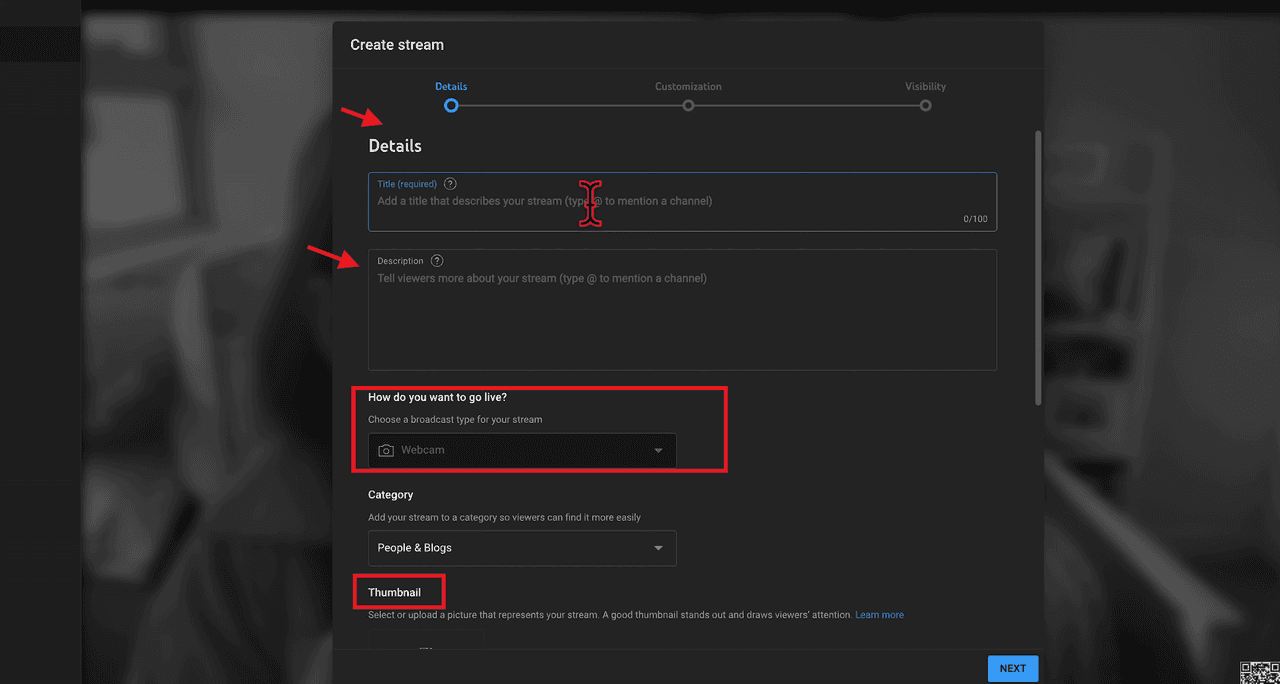
In the Live Control Room, make sure to fill in the necessary details about your live stream content to attract viewers. Always create a searchable title and detailed description. Then make the necessary settings by selecting from Public (anyone can watch), Unlisted (only those with a link), or Private (only you). You have the option to schedule the stream for a future date and time.
Step 4: Choose the camera, microphone, and settings
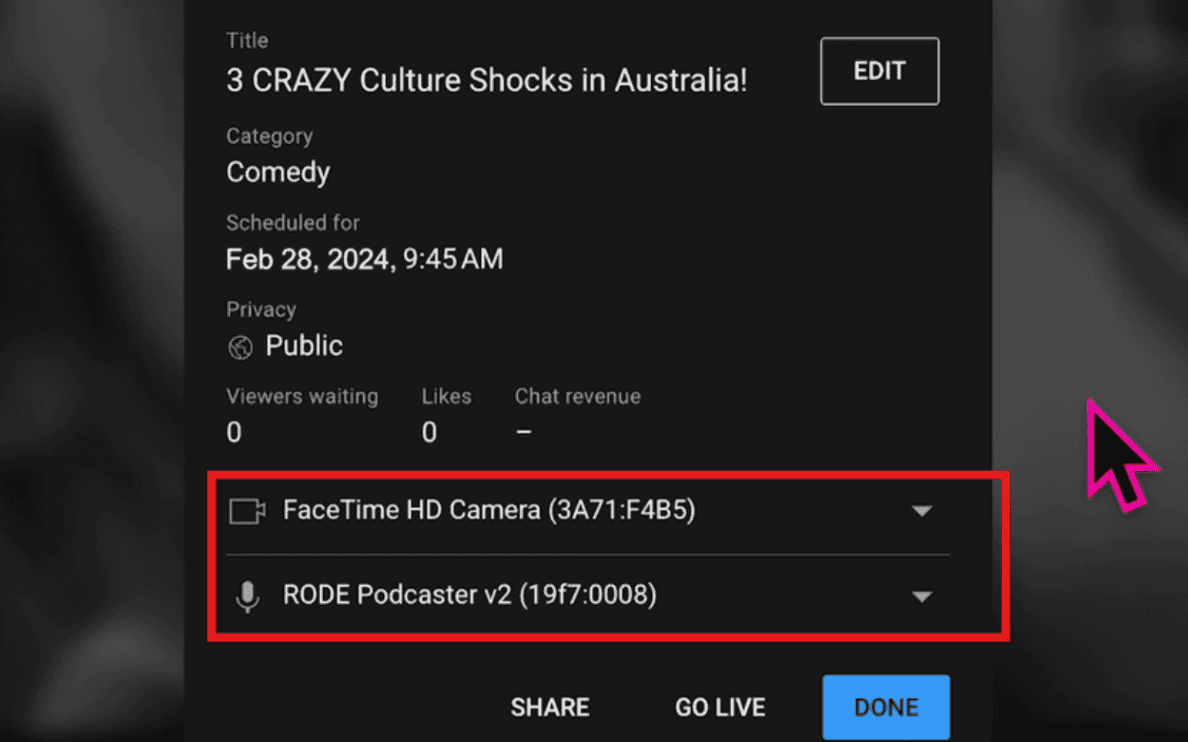
Before going live, ensure your audio and video are working properly. In the webcam setup, select your preferred USB webcam and microphone from the settings menu. You can set audience restrictions (made for kids), monetization, and live chat options. Finally, upload a custom thumbnail to make your stream more appealing.
Step 5: Start your live stream
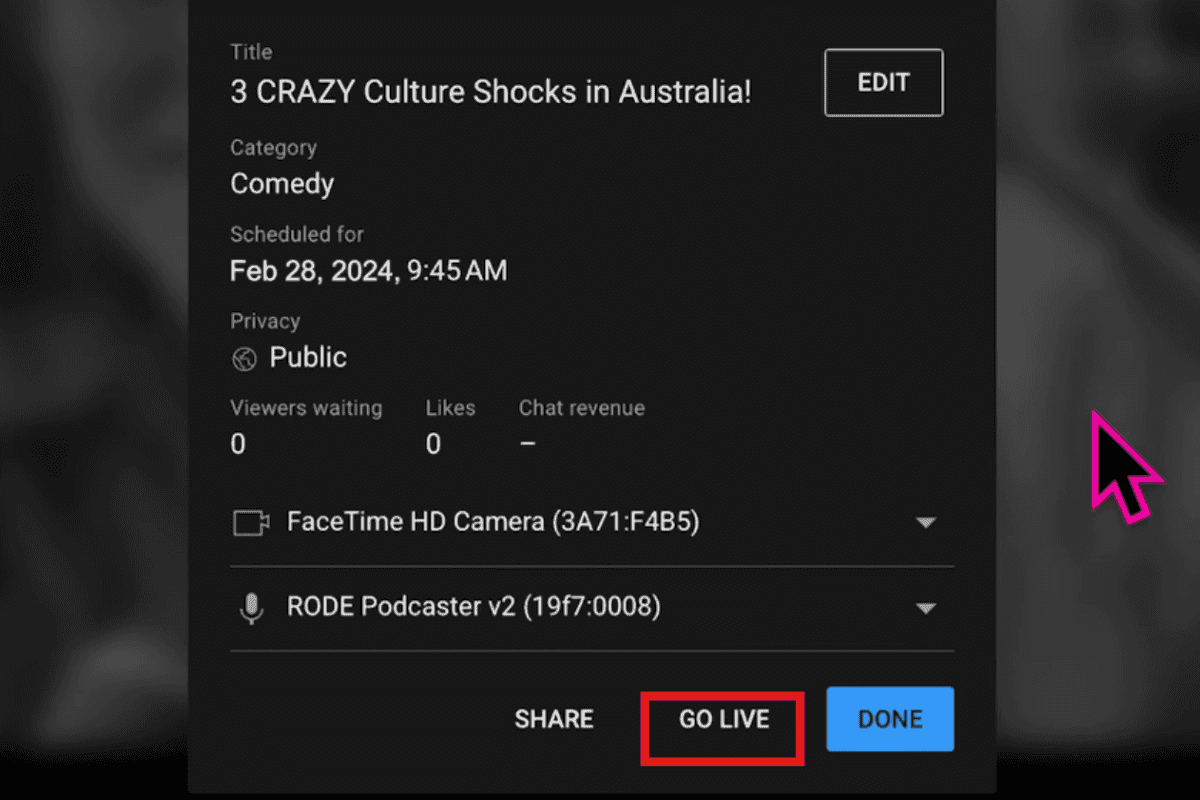
When everything feels ready, start the stream. If you are on a webcam, simply click the Go Live button at the bottom of the screen. In OBS, open your software (like OBS), ensure the stream key from YouTube is entered, and click "Start Streaming" in your system software. For a mobile phone user, you have to tap the "Go Live" option.
Step 6: End stream and review performance
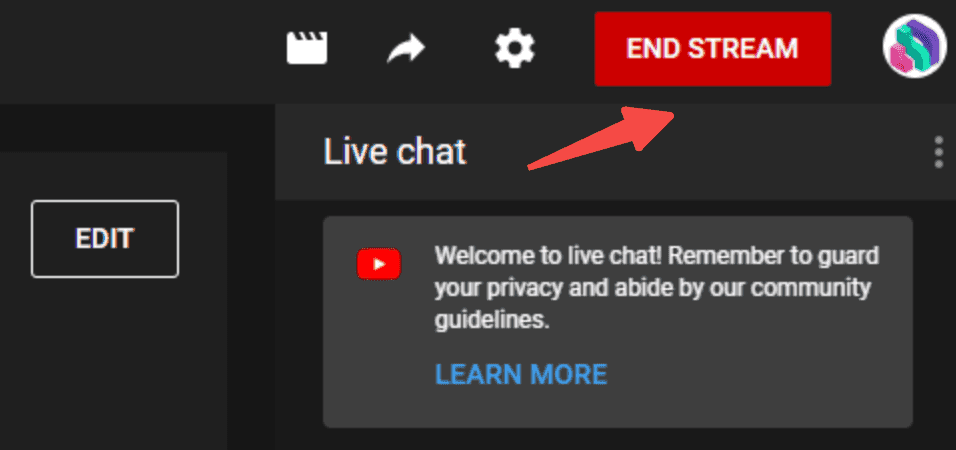
When you're done with the session, click "End Stream" at the bottom of the dashboard, then confirm. YouTube automatically archives live streams under 12 hours, enabling you to edit or delete them later. After the stream, you can check analytics like peak concurrency, total watch time, and chat engagement in YouTube Studio.
Manage uninterrupted power supply
A stable power supply is the backbone of smooth live streaming on YouTube. Even a short power cut can end a session, disrupt audience engagement, and affect your streaming consistency. That's why many creators rely on backup energy systems from trusted brands like EcoFlow to maintain reliable power during broadcasts. Here are the key power supply details to consider while following the process of how to enable live streaming on YouTube.
STREAM Ultra X
The STREAM Ultra X is built around the idea of high-load performance. It is designed to reduce electricity costs and increase reliability. At the performance level, it delivers 1200W AC output. This is strong enough to run high-demand appliances without struggling. For creators, this means your full streaming setup. You can run together smoothly without worrying about overload or sudden shutdowns.
What makes it even more flexible is its expandable capacity, ranging from 3.84kWh up to 23kWh. This means you can scale your energy storage based on your needs. A small setup for daily streaming works just as well as a larger configuration.
On the input side, it is designed for strong solar performance. With up to 2000W solar input, 4 MPPTs, and low-light cell technology, it captures more energy. This ensures that your system keeps charging efficiently instead of depending only on grid electricity. For areas with unstable power, this becomes a major advantage for live streaming on YouTube.
Durability is another strong point. With a 15-year lifespan, the system is built for long-term use rather than short-term backup. It focuses on safety and consistent performance over many years. It also connects seamlessly with smart home ecosystems through Tiber, Matter, and Shelly protocols, allowing smooth integration with smart plugs, lighting systems, and automation features widely used in modern gaming setups.
DELTA 3 Max Plus
The EcoFlow DELTA 3 Max Plus, with its 2kWh capacity, is built for users who need serious power. It is made to handle heavy streaming equipment, long sessions, and unstable power environments. At its core, it delivers an industry-leading 3000W AC output with a 6000W surge capacity. This means it can easily support power-hungry devices like high-end PCs and studio lighting systems.
Even during peak load spikes, the system holds steady without shutting down. It is structured through industry-first full-tab LFP cells combined with an advanced smart BMS that runs 24/7 protection. This setup continuously monitors performance, temperature, and power flow. For creators, this means less risk of overheating, battery stress, or sudden failures during live sessions.
With flexible expansion from 2kWh to 10kWh, the DELTA 3 MAX PLUS can scale alongside your gaming environment, handling setups from simple gaming spaces to advanced multi-device streaming systems. This adaptability ensures dependable long-term performance, steady power delivery, and optimized energy control
One of its most important features is the <10 ms UPS auto-switch system. This ensures that when power cuts occur, the switch to backup mode happens almost instantly. For live streaming on YouTube, this near-zero delay is what prevents stream drops.
With its Smart Output Priority feature, your device is powered. Due to its EcoFlow Oasis smart app, you can monitor power usage, adjust settings, and manage energy distribution directly from your smartphone. Therefore, this creates an efficient indoor growing setup.
Best settings for YouTube live streaming
Always keep in mind that good settings make your YouTube live streams easier to watch. On YouTube, viewers will tolerate simple visuals, but not distortion. So, your end goal is smooth playback, clear sound, and stable performance. Read the details of the best setting while following the process of how to allow live streaming on YouTube.
Resolution and bitrate
Always keep in mind that a resolution affects how your video looks. On the other hand, the bitrate controls how much data is sent. Higher isn't always better. If your internet can't handle it, your stream will lag. For most people, 720p or 1080p with a steady bitrate works well. Make sure to choose stability over maximum quality every time.
Audio quality
Your audience will forgive an average video, but not bad audio. If your voice is unclear or echoing, viewers leave quickly. You can use a decent microphone and keep background noise low. Even a simple external mic can sound far better than a built-in one. Therefore, a clear sound keeps people listening.
Frame rate
Generally, a frame rate controls how smooth your video appears. For normal talking streams, 30 fps is usually good. If you're streaming games, then use a 60 fps. A stable frame rate matters more than a higher one that keeps dropping during your stream.
Recommended tools for better live streaming
As you stream more often on YouTube, small upgrades start to make a real difference. You don't need everything at once. A few reliable tools can make your stream look cleaner and feel easier to manage. The goal is to focus on fewer distractions and better focus on your content. Here are details of the tools used while following the process of how to watch a live stream on YouTube.
Streaming software (e.g., OBS)
Tools like OBS Studio give you more control over how your stream looks. You can switch scenes, share your screen, and easily adjust audio without stress. It may take a little time to learn. However, once you do, your streams feel more organized and easier to handle.
External microphones and cameras
Mostly, your audio matters more than most people expect. A basic external microphone can make your voice sound clear and easy to follow. The same goes for cameras. You don't need the most expensive option. Make sure to show you clearly without constant refocusing.
Lighting setup
Sharp lighting can make your screen more visually appealing. Poor lighting creates shadows and dull colors, even with a good camera. A simple light placed in front of you can fix that. However, natural light works too. The idea is to keep your face visible and comfortable to watch.
Tips to improve your live streams
If you want to improve your YouTube live streams, make sure to follow these practices. A small improvement adds up over time. Always best to focus on clarity, consistency, and connection. That's what keeps people coming back, not just one good stream.
Plan your content in advance
It is best to go live with a proper plan. This thing removes any pauses and confusion. You don't need a script, but a simple outline helps. Know your key points and the order you'll cover them. This keeps the stream moving and makes you sound more confident without feeling forced.
Engage with your audience in real time
As you already know, live streaming is a two-way experience. If people are commenting, acknowledge them. Read a few messages, respond naturally, and keep things flowing. You don't have to answer everything. Therefore, small interactions make viewers feel seen and more likely to stay.
Maintain a consistent streaming schedule
You know consistency in every field builds trust. When you stream at random times, people miss it. Always best to pick a schedule that works for you and stick to it. Over time, your audience starts to expect you. That habit alone can grow your viewership without changing anything else.=
Conclusion
To sum up, the steps of how to live stream on YouTube are super easy for beginners. A successful stream depends on preparation, stability, and consistent performance. Even small issues like power cuts or weak setups can break audience focus and reduce engagement quickly.
When your system is reliable, you can concentrate on your content instead of worrying about technical problems. This creates a smoother experience for both you and your viewers, helping you build trust and consistency over time.
That is where advanced energy support becomes important for creators who stream regularly. It removes uncertainty and keeps your setup running under all conditions. EcoFlow provides systems designed to provide high-output power. Therefore, the creators can focus on streaming without interruption.
FAQs
Can I stream live on YouTube for free?
Yes, live streaming on YouTube is completely free for everyone. You don't need to pay for access or tools to start. A basic account is enough. However, better equipment, like microphones or software, can improve quality. They are optional and depend on your goals and setup.
Do you need 1000 subscribers on YouTube to live stream?
No, you don't always need 1000 subscribers. You can stream from a desktop or webcam with no subscriber limit. However, mobile live streaming often requires at least 50 subscribers. The basic requirements can vary slightly by region and account status. So, always check your channel settings before starting.
How do I get permission to stream live on YouTube?
You don't apply for special permission. First, verify your account using a phone number. Then enable live streaming in YouTube Studio. After activation, it may take up to 24 hours. Once enabled, you can start streaming anytime as long as there are no restrictions on your channel.
How do I start streaming as a beginner?
It is best to start simple on YouTube. Use your phone or webcam first. Go to YouTube Studio, click "Go Live," and set your title. Always keep your setup basic, like good lighting, clear audio, and stable internet. Make sure to focus on talking naturally instead of perfection.